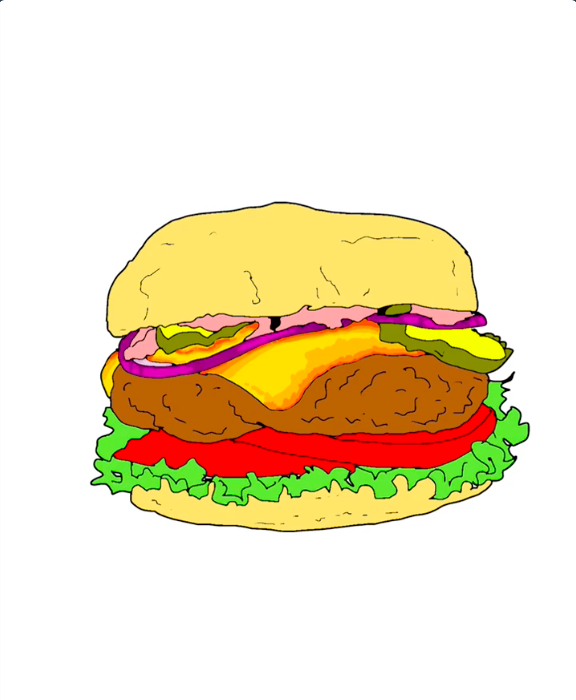
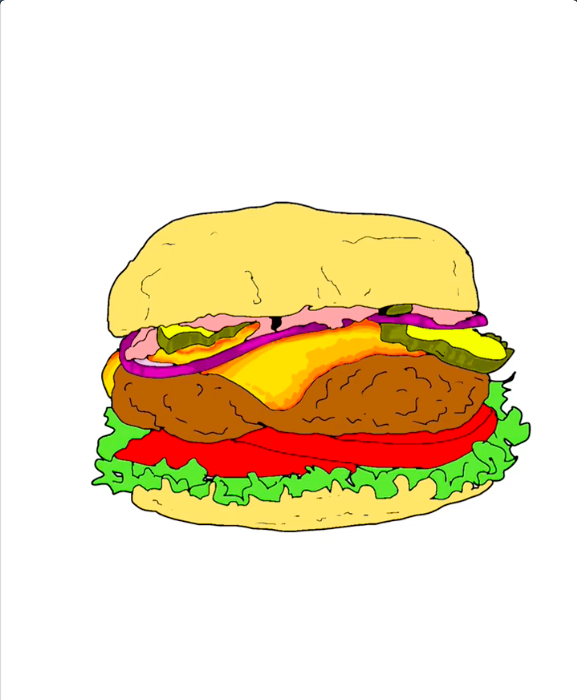
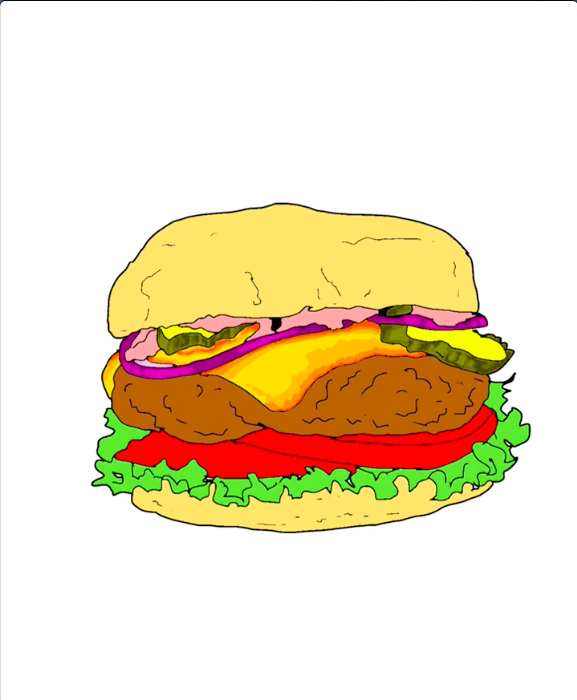
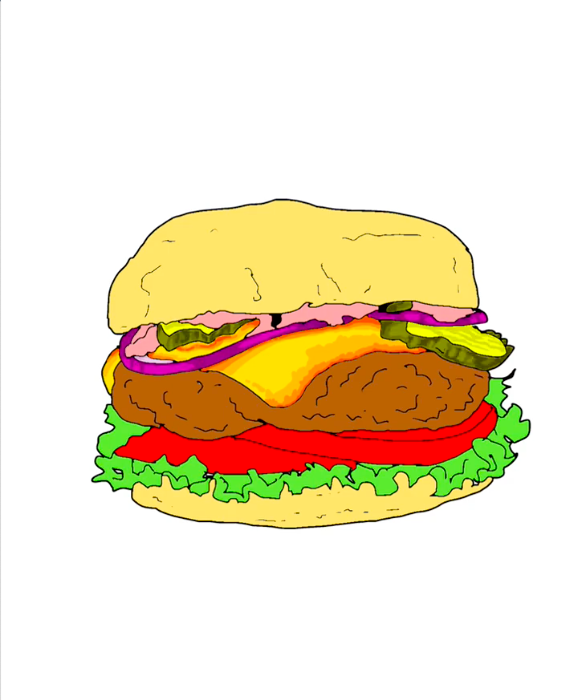
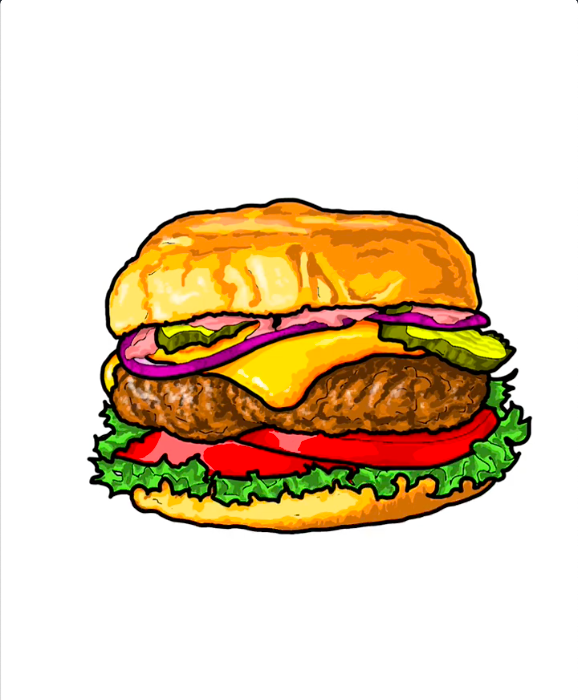
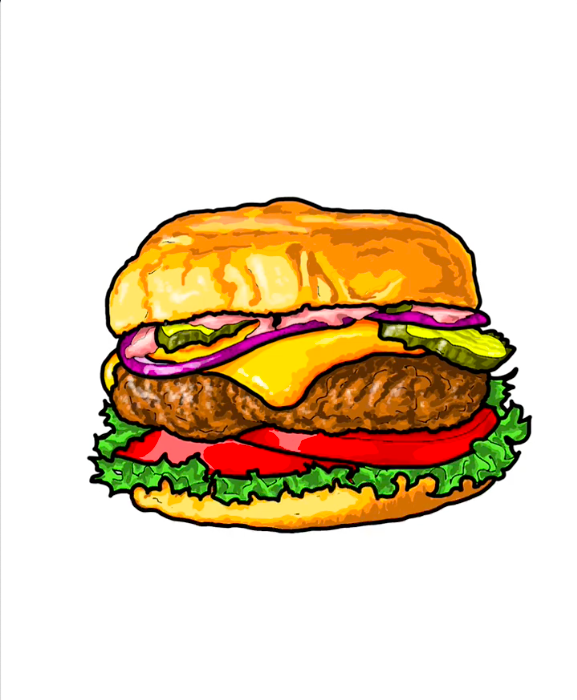
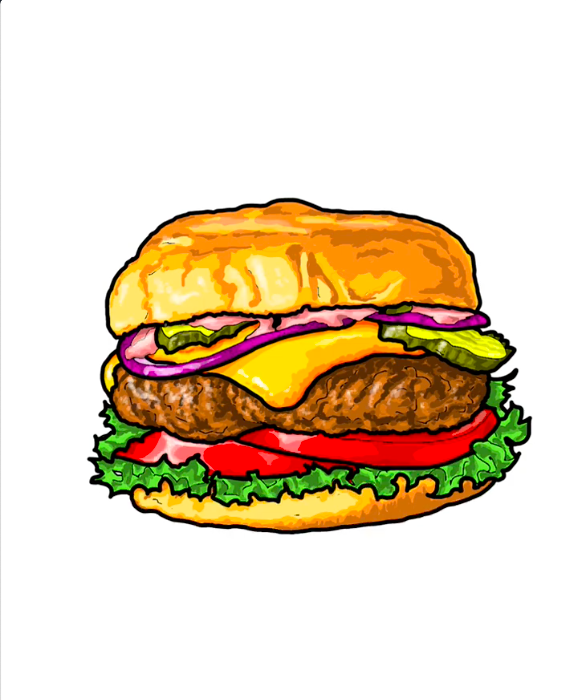
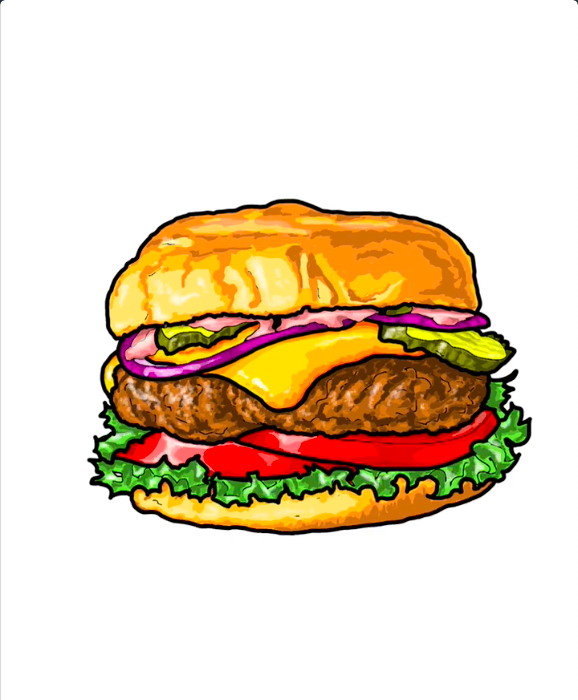
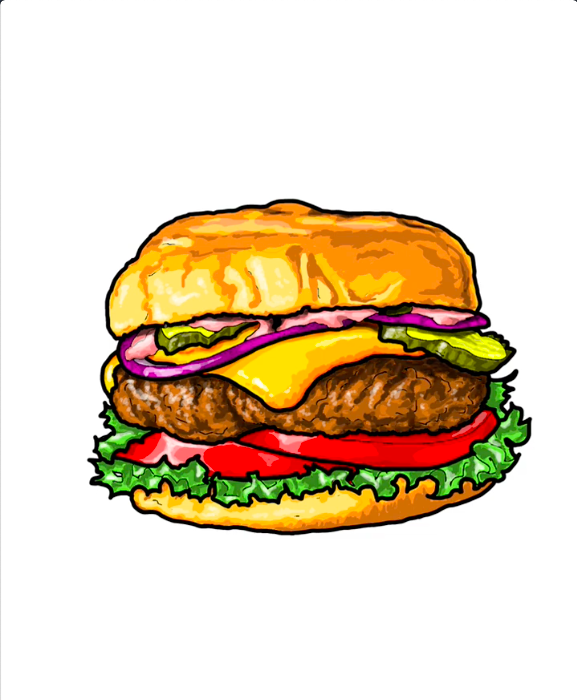
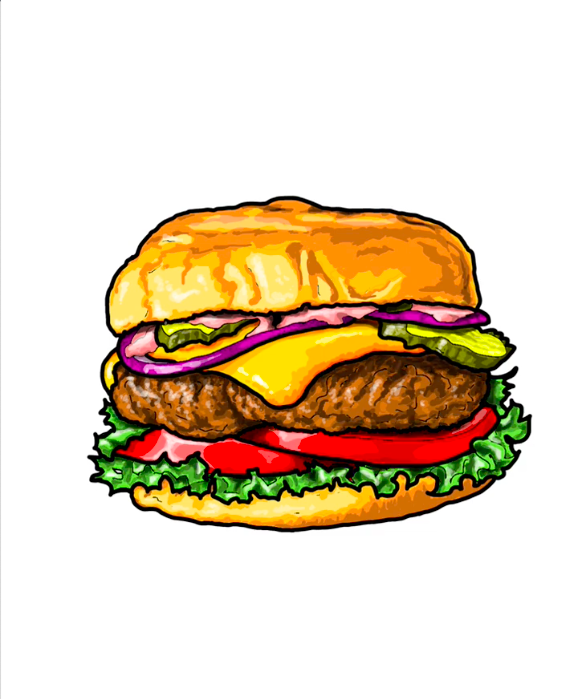
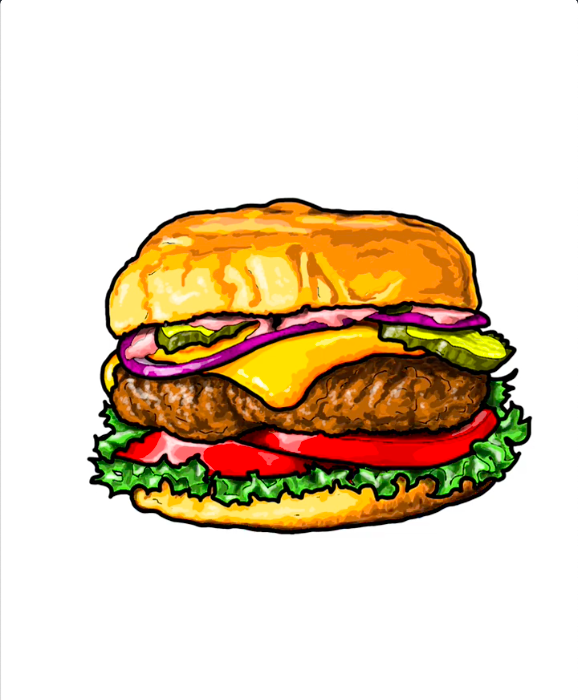
How to Draw and Color a Realistic Hamburger Step by Step in IbisPaint

Post by Madeleine Dubé
how-to-draw fast-food

1. Start by tracing the outline of the upper bun

Use a unique layer to trace all the outlines.
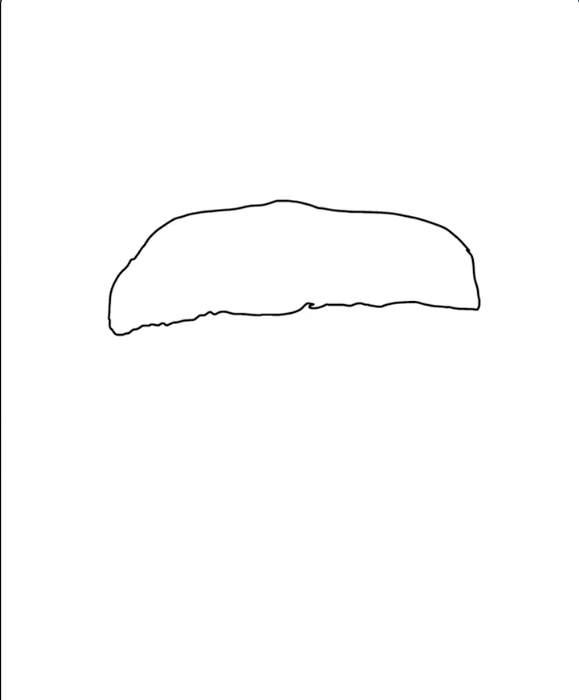
Step 1 how to draw hamburger in IbisPaint - Preliminary outline of the hamburger top bun
Preliminary outline of the hamburger top bun

2. Draw the outlines of the burger fillings

Add the sauce, pickles, onion, cheese, beef patty, tomatoes and lettuce. Finish with the bottom bun.
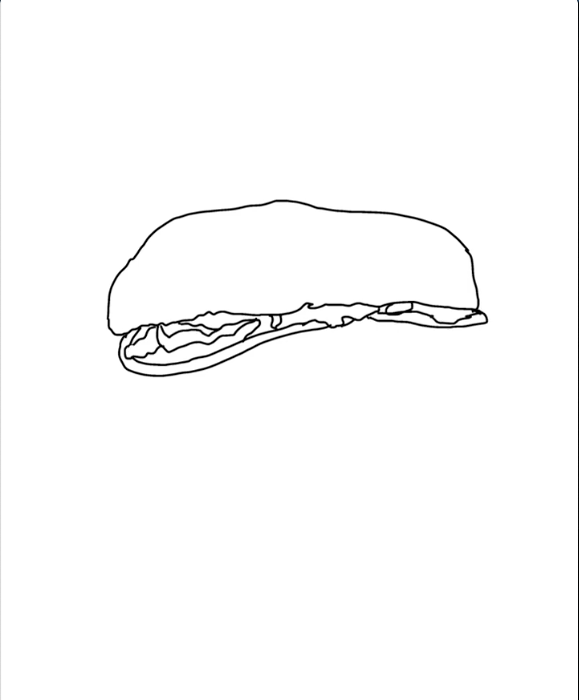
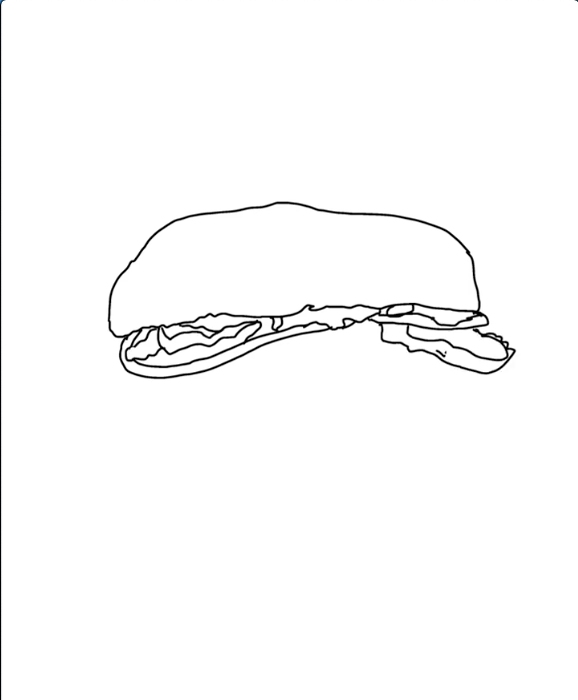
Step 2 how to draw hamburger in IbisPaint - Sauce, pickles and red onion slices are added to the drawing
Sauce, pickles and red onion slices are added to the drawing
Step 3 how to draw hamburger in IbisPaint - One more pickle added
One more pickle added
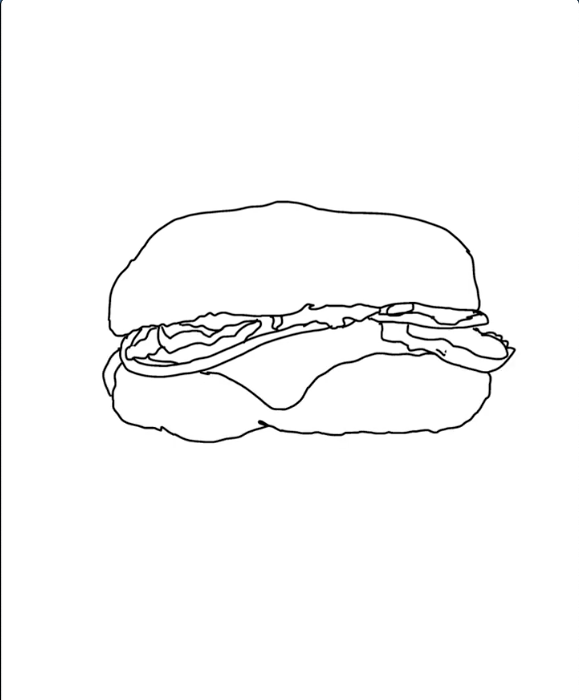
Step 4 how to draw hamburger in IbisPaint - The cheese and beef patty outlines are drawn
The cheese and beef patty outlines are drawn
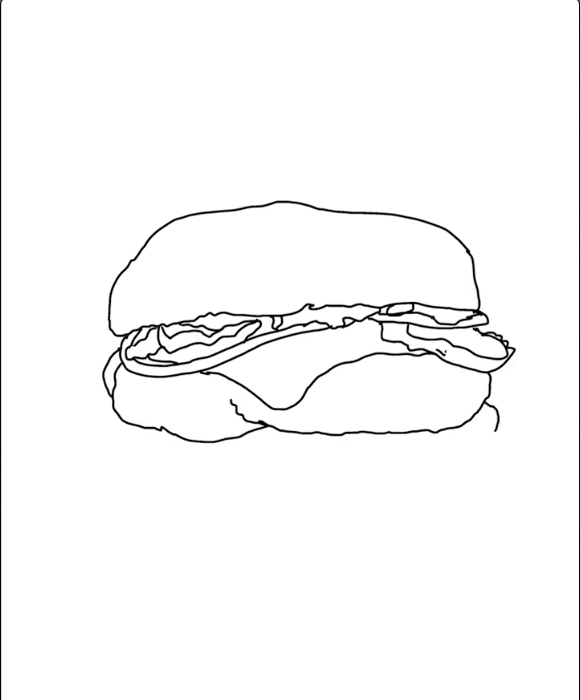
Step 5 how to draw hamburger in IbisPaint - The beef patty is being completed
The beef patty is being completed
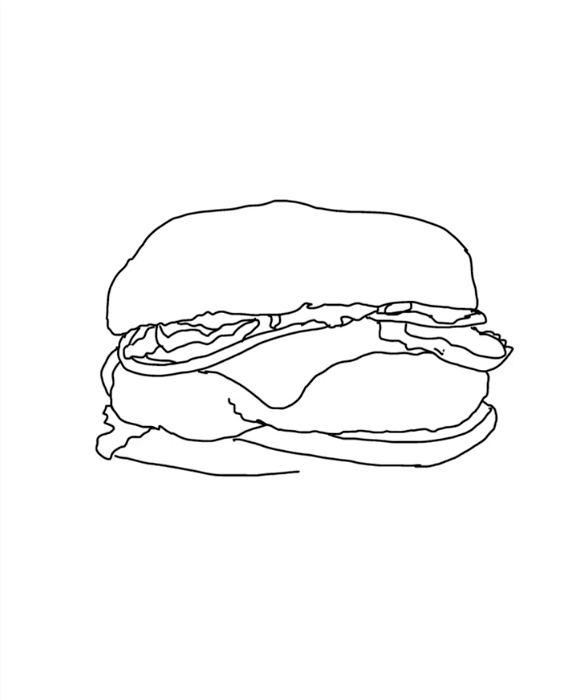
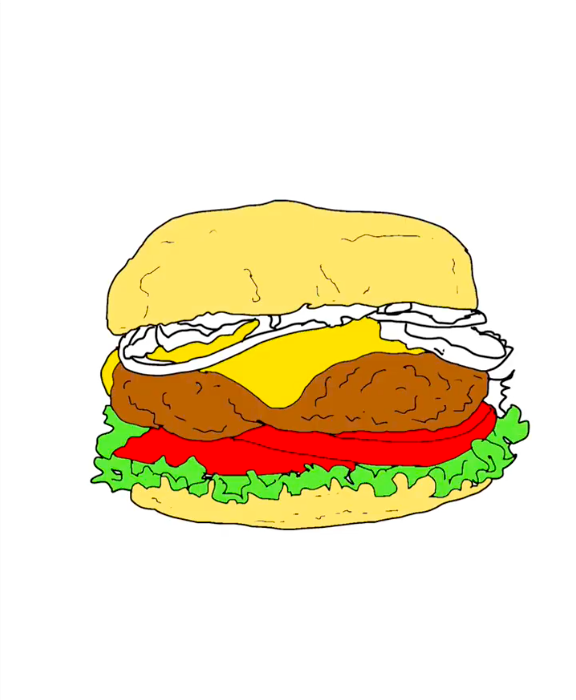
Step 6 how to draw hamburger in IbisPaint - Add the tomatoes under the beef patty
Add the tomatoes under the beef patty
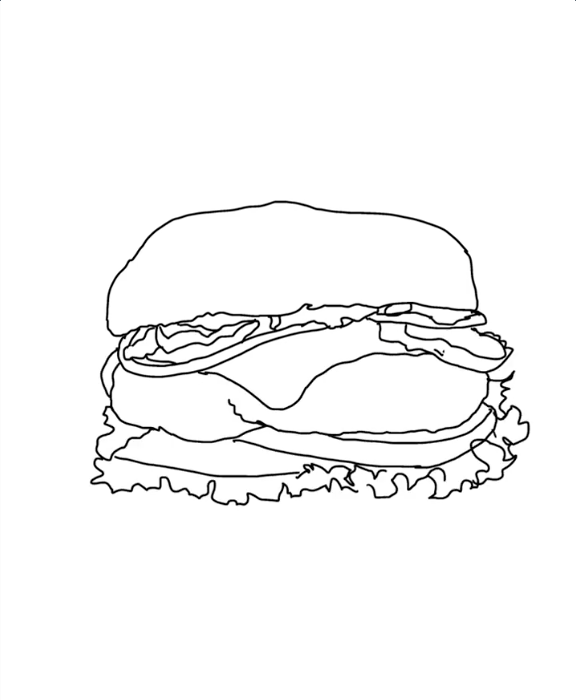
Step 7 how to draw hamburger in IbisPaint - Lettuce outlines drawn under the tomato
Lettuce outlines drawn under the tomato
Step 8 how to draw hamburger in IbisPaint - Texture is added to the lettuce
Texture is added to the lettuce
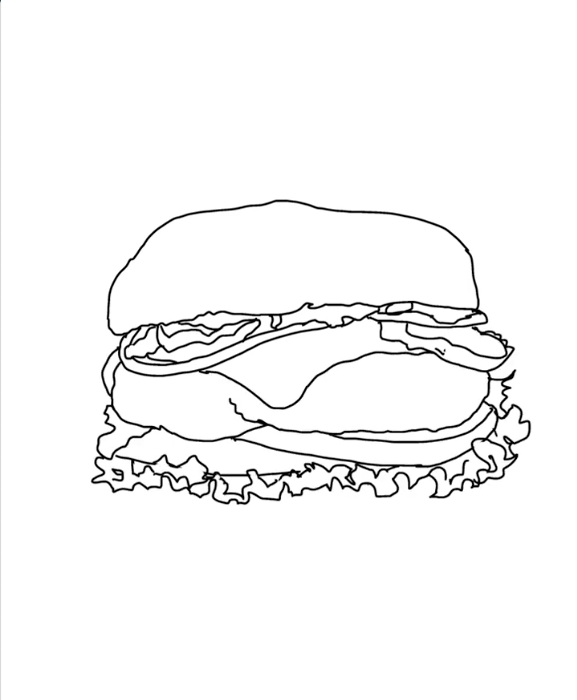
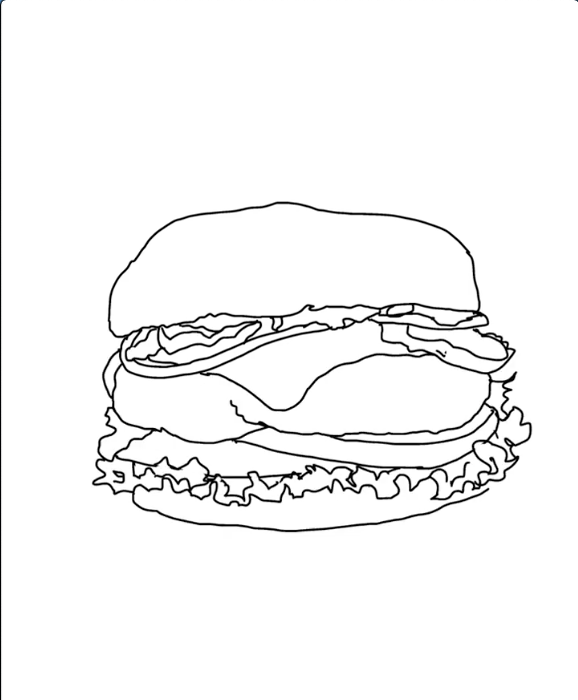
Step 9 how to draw hamburger in IbisPaint - Finish the hamburger outlines with the bottom bun
Finish the hamburger outlines with the bottom bun

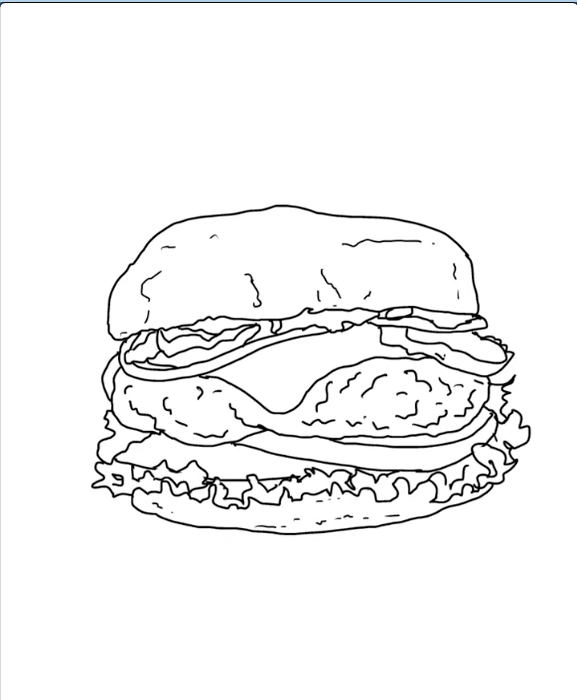
3. Add textures to the beef patty and bread buns

On the same initial layer, add small lines to create a ground beef texture and some small lines on the bun
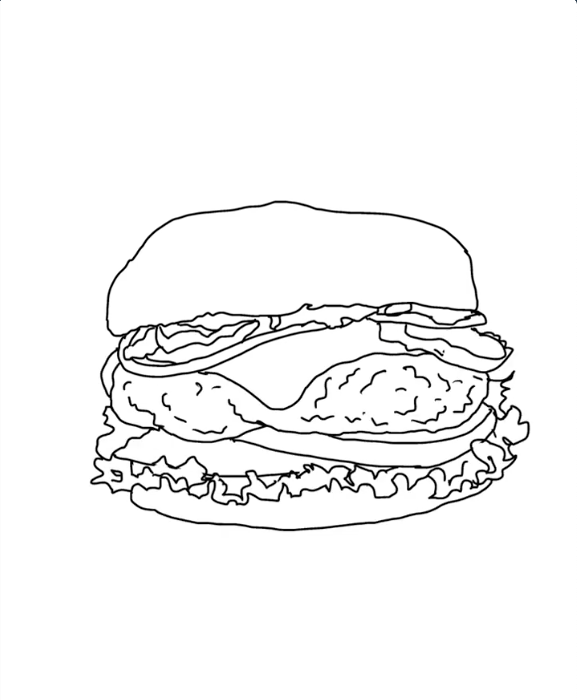
Step 10 how to draw hamburger in IbisPaint - Ground beef texture is added to the patty
Ground beef texture is added to the patty
Step 11 how to draw hamburger in IbisPaint - Fine lines added to the top and bottom buns for texture
Fine lines added to the top and bottom buns for texture

4. Add the main color to all the different burger parts

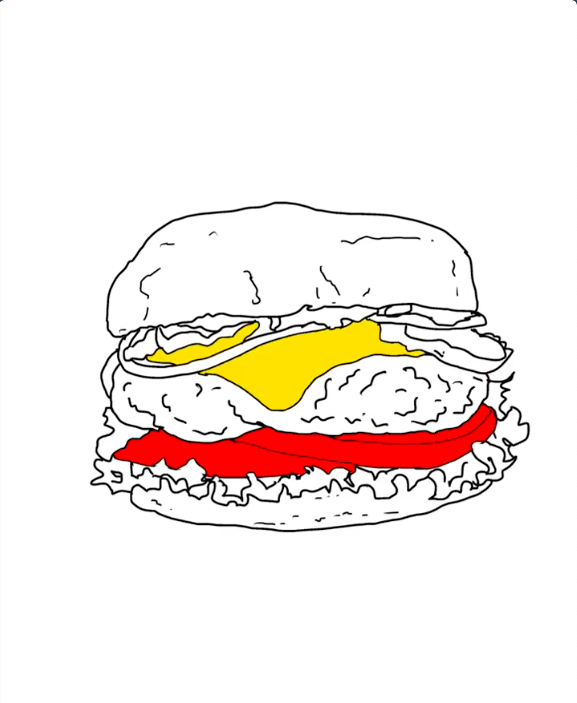
Create a different and unique layer for all the different food elements (cheese, onion, tomatoes, beef patty, sauce, pickles, buns, lettuce). Each layer will have its own color theme.
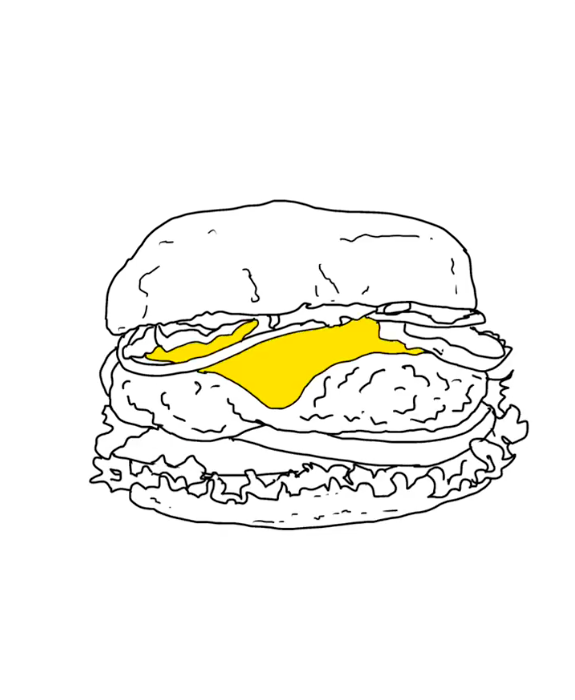
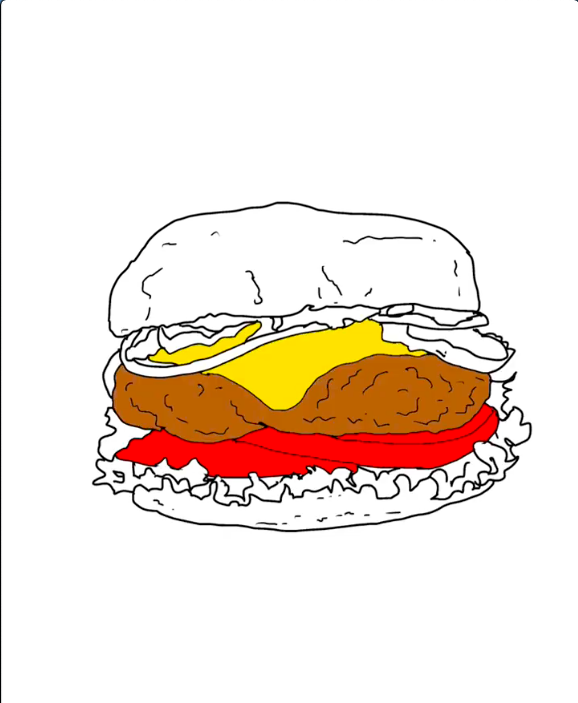
Step 12 how to draw hamburger in IbisPaint - Use the bucket tool to fill the cheese outline with a middle yellow
Use the bucket tool to fill the cheese outline with a middle yellow
Step 13 how to draw hamburger in IbisPaint - Use the bucket tool to fill the tomatoes outline with a bright red
Use the bucket tool to fill the tomatoes outline with a bright red
Step 14 how to draw hamburger in IbisPaint - Use the bucket tool to fill the beef patty outline with a medium red-brown
Use the bucket tool to fill the beef patty outline with a medium red-brown
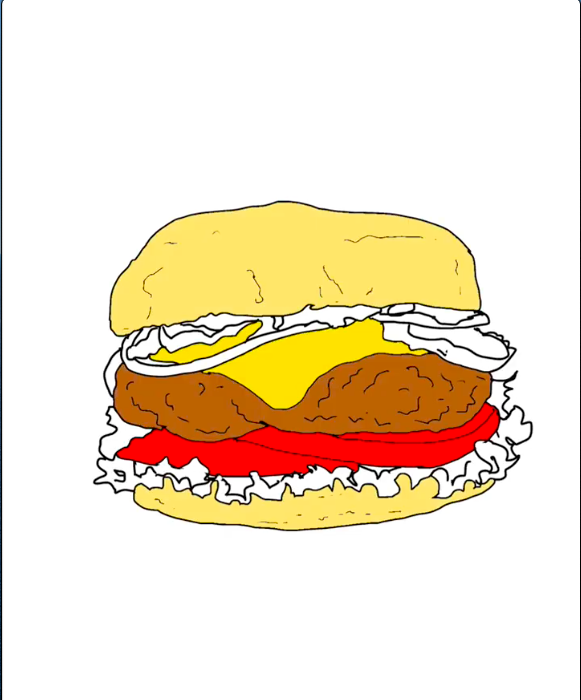
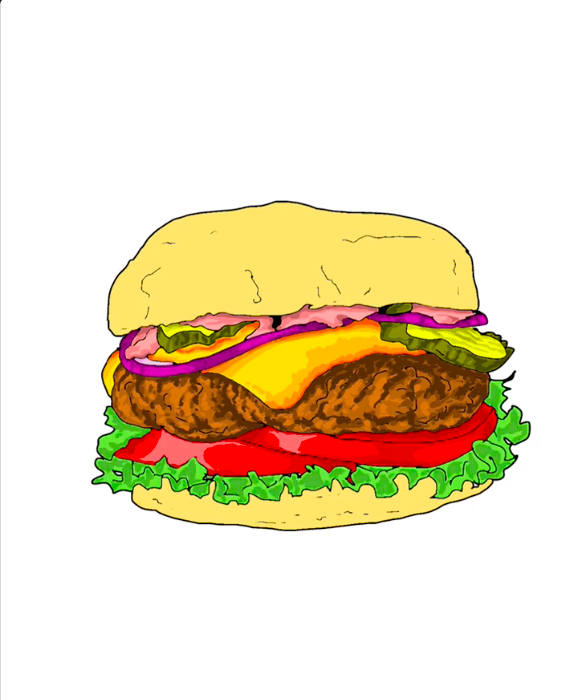
Step 15 how to draw hamburger in IbisPaint - Use the bucket tool to fill the buns outlines with a light beige
Use the bucket tool to fill the buns outlines with a light beige
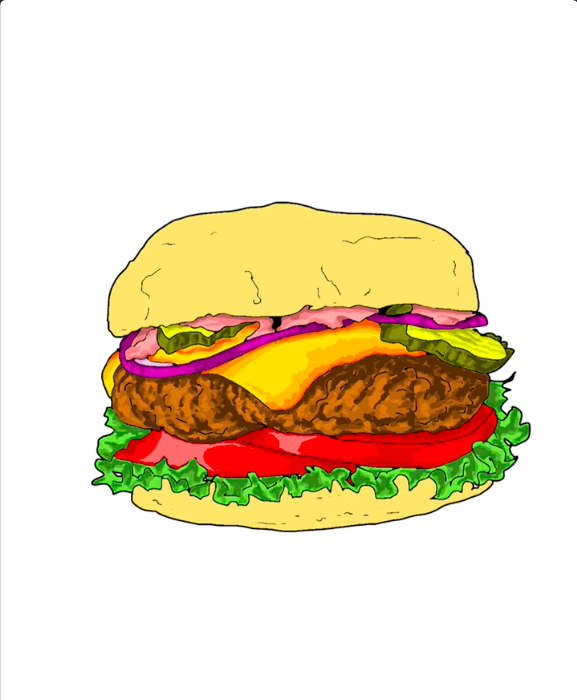
Step 16 how to draw hamburger in IbisPaint - Use the bucket tool to fill the lettuce outlines with a bright light green
Use the bucket tool to fill the lettuce outlines with a bright light green
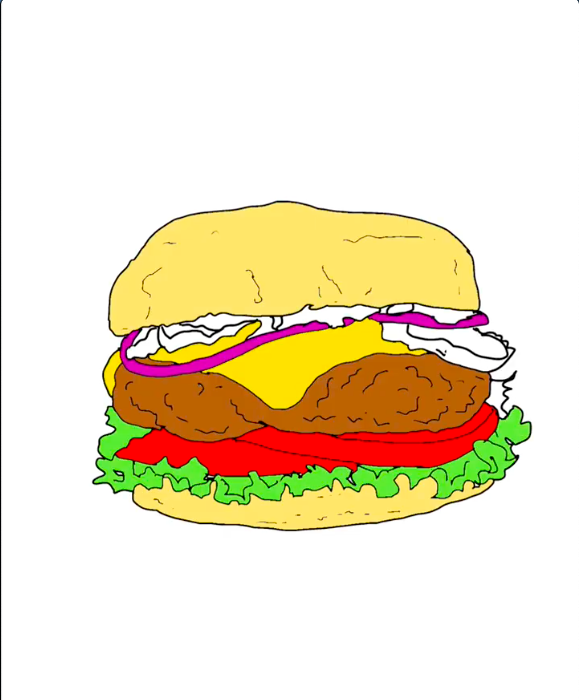
Step 17 how to draw hamburger in IbisPaint - Use the bucket tool to fill the onion outlines with a dark purple
Use the bucket tool to fill the onion outlines with a dark purple
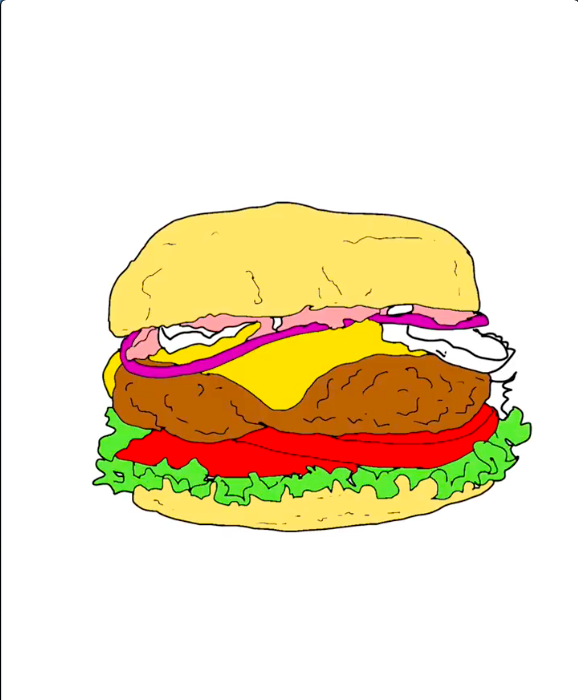
Step 18 how to draw hamburger in IbisPaint - Use the bucket tool to fill the sauce outlines with a medium pink
Use the bucket tool to fill the sauce outlines with a medium pink
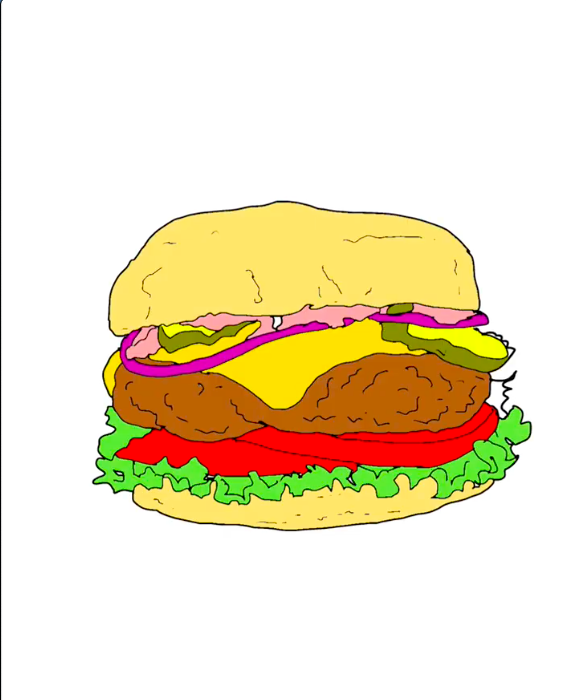
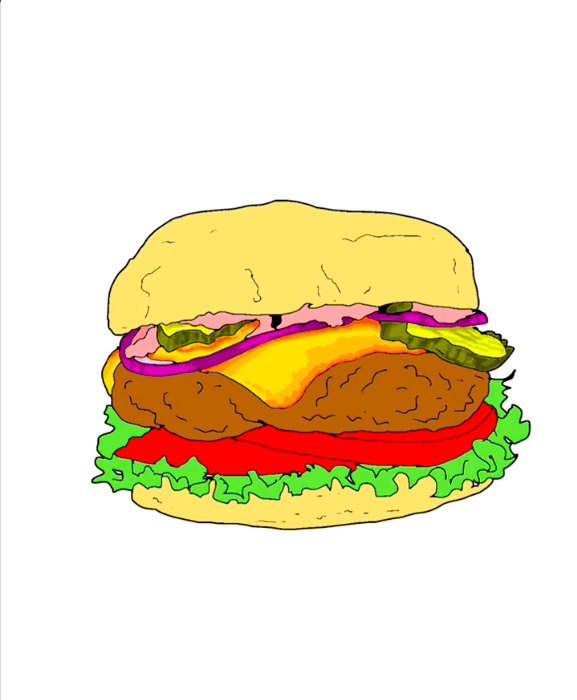
Step 19 how to draw hamburger in IbisPaint - Use the bucket tool to fill the pickles outlines with a dark green khaki for the skins and bright yellow green for the sliced interior surfaces
Use the bucket tool to fill the pickles outlines with a dark green khaki for the skins and bright yellow green for the sliced interior surfaces

5. Add depths of colors by adding darker hues on the hamburger condiments

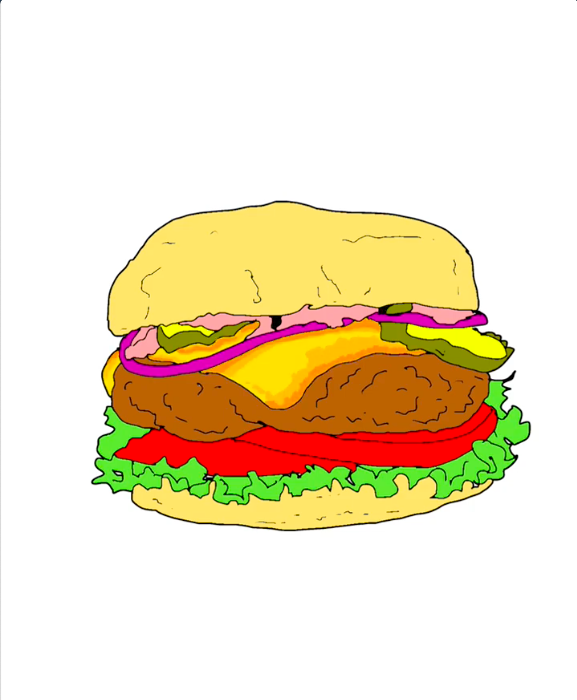
Working within each condiment specific layer, add three progressive darker hues within the main color theme value of the food element
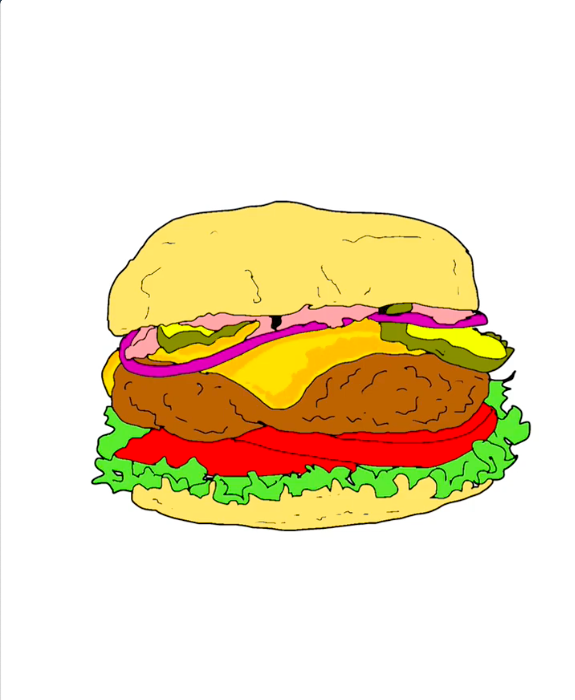
Step 20 how to draw hamburger in IbisPaint - With the brush tool add dark yellow for the main shadows on the cheese
With the brush tool add dark yellow for the main shadows on the cheese
Step 21 how to draw hamburger in IbisPaint - With the brush tool add light orange for more pronounced shadows on the cheese
With the brush tool add light orange for more pronounced shadows on the cheese
Step 22 how to draw hamburger in IbisPaint - With the brush tool add dark orange near some outlines the cheese
With the brush tool add dark orange near some outlines the cheese
Step 23 how to draw hamburger in IbisPaint - With the brush tool add dark purple on the onion slice
With the brush tool add dark purple on the onion slice
Step 24 how to draw hamburger in IbisPaint - With the brush tool add dark green khaki to create textures on the pickles skins
With the brush tool add dark green khaki to create textures on the pickles skins
Step 25 how to draw hamburger in IbisPaint - With the brush tool add even darker green khaki to create depth textures on the pickles skins
With the brush tool add even darker green khaki to create depth textures on the pickles skins
Step 26 how to draw hamburger in IbisPaint - With the brush tool add light green to create textures on the pickles sliced interiors surfaces
With the brush tool add light green to create textures on the pickles sliced interiors surfaces
Step 27 how to draw hamburger in IbisPaint - With the brush tool add medium green to create depth textures on the pickles sliced interiors surfaces
With the brush tool add medium green to create depth textures on the pickles sliced interiors surfaces
Step 28 how to draw hamburger in IbisPaint - With the brush tool add medium pink to create shadows on the sauce
With the brush tool add medium pink to create shadows on the sauce
Step 29 how to draw hamburger in IbisPaint - With the brush tool add dark pink to create deeper shadows near the outlines the sauce
With the brush tool add dark pink to create deeper shadows near the outlines the sauce

6. Continue adding depths of colors by adding darker hues on the remaining hamburger condiments

Continue working within each condiment specific layer, adding three progressive darker hues within the main color theme value of the food element
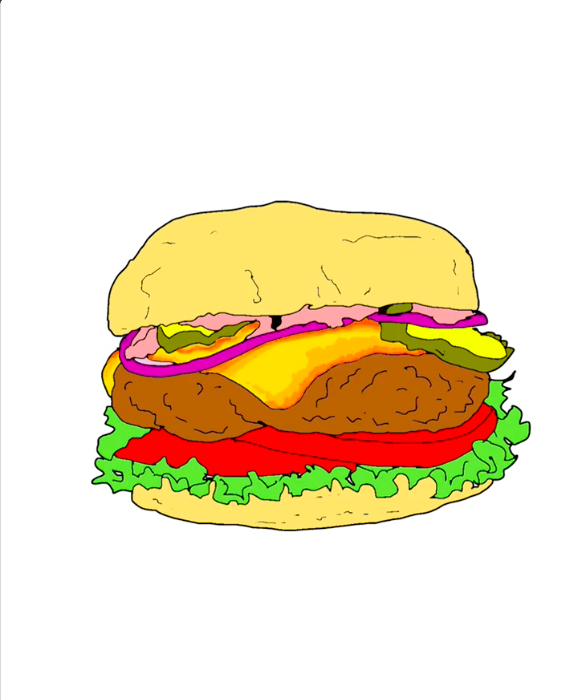
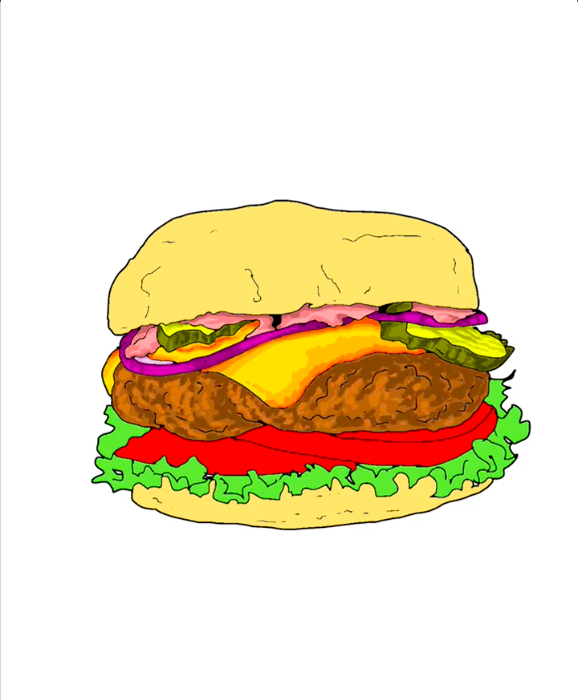
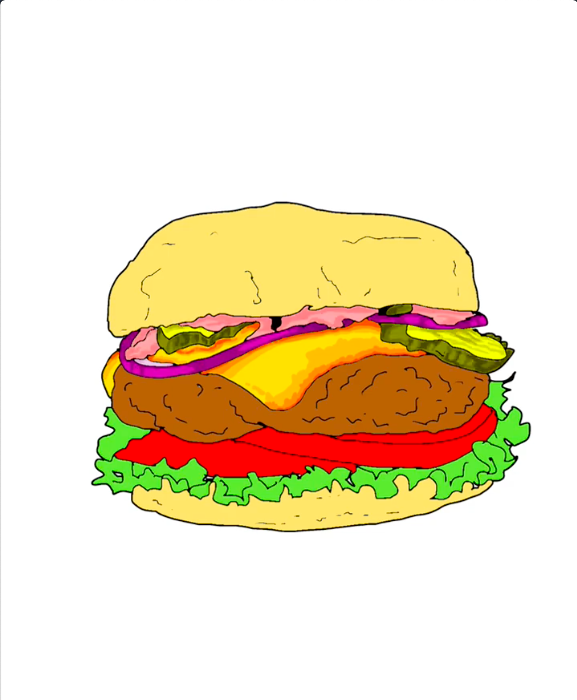
Step 30 how to draw hamburger in IbisPaint - With the brush tool add spots in light brown to create ground meat texture
With the brush tool add spots in light brown to create ground meat texture
Step 31 how to draw hamburger in IbisPaint - With the brush tool continue adding spots but in darker brown to create shadows and a ground meat texture
With the brush tool continue adding spots but in darker brown to create shadows and a ground meat texture
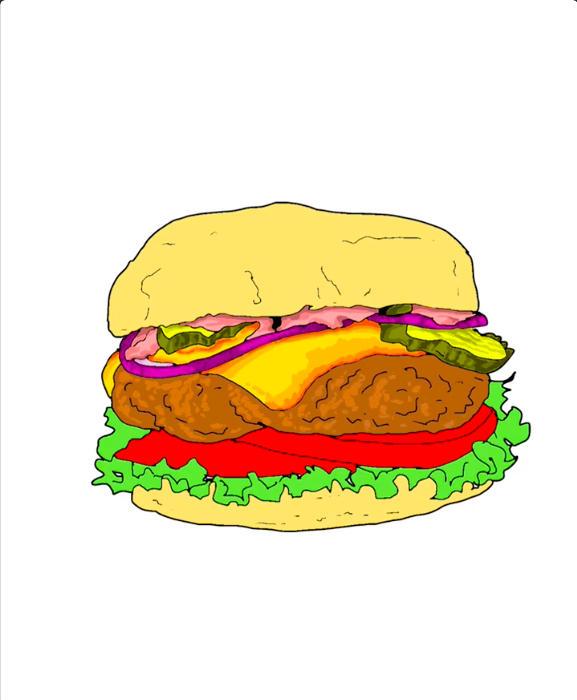
Step 32 how to draw hamburger in IbisPaint - With the brush tool use an even darker brown to add more pronounced shadows on the textures already added on the meat
With the brush tool use an even darker brown to add more pronounced shadows on the textures already added on the meat
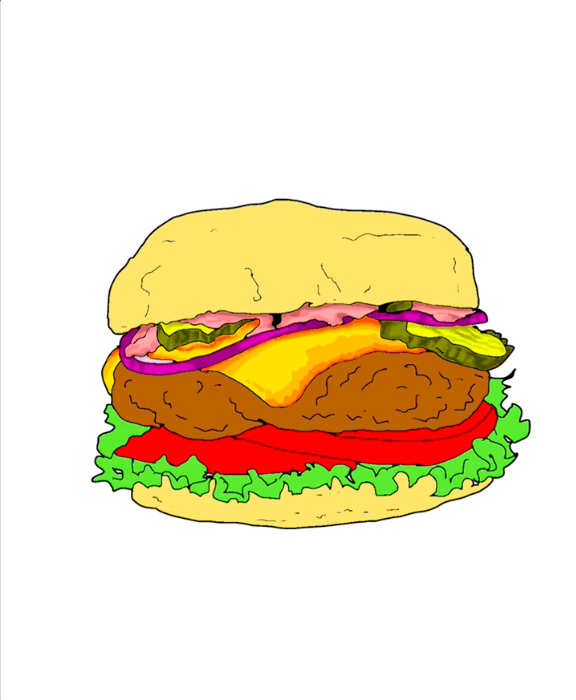
Step 33 how to draw hamburger in IbisPaint - Add bright highlights on the tomatoes with the brush tool by adding light red on one side
Add bright highlights on the tomatoes with the brush tool by adding light red on one side
Step 34 how to draw hamburger in IbisPaint - Add shadows on the tomatoes with the brush tool by adding dark red zones
Add shadows on the tomatoes with the brush tool by adding dark red zones
Step 35 how to draw hamburger in IbisPaint - Add darker shadows on the tomatoes with the brush tool by adding darker red zones near some outlines
Add darker shadows on the tomatoes with the brush tool by adding darker red zones near some outlines
Step 36 how to draw hamburger in IbisPaint - Create the lettuce texture by adding medium green zones within the crinkles
Create the lettuce texture by adding medium green zones within the crinkles
Step 37 how to draw hamburger in IbisPaint - Add more pronounced lettuce textures with darker green
Add more pronounced lettuce textures with darker green

7. Add the shadows to the hamburger buns

Add the darker beige hues for the buns on their specific layer
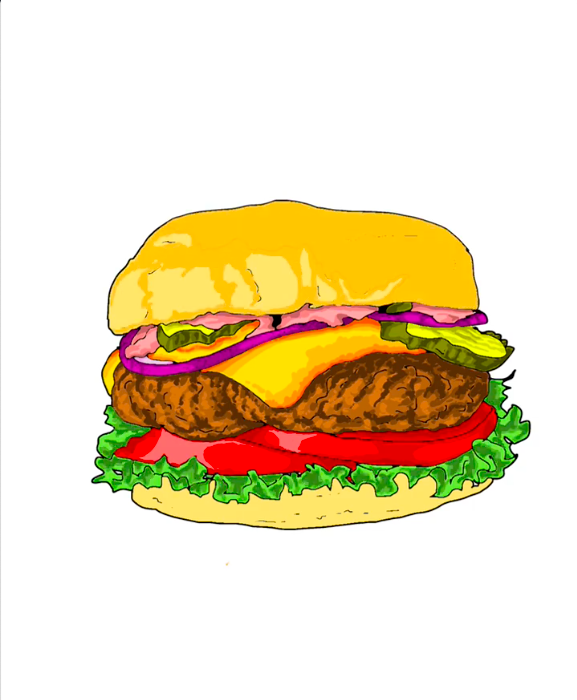
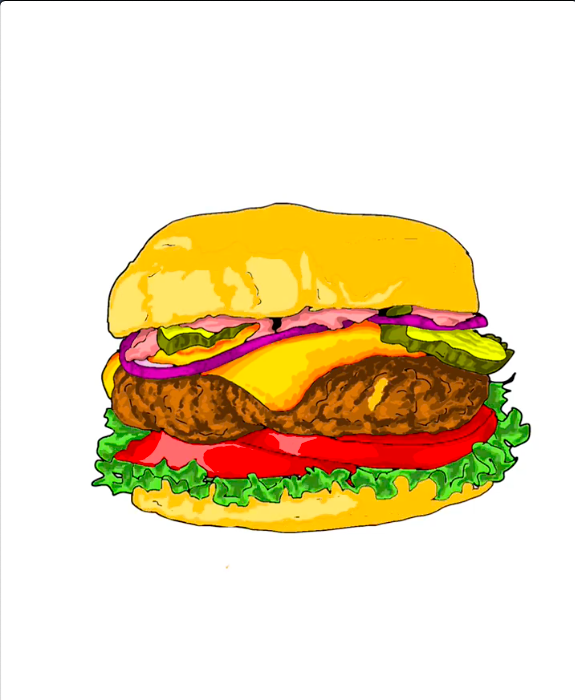
Step 38 how to draw hamburger in IbisPaint - Add dark beige shapes on the top bun with the brush tool
Add dark beige shapes on the top bun with the brush tool
Step 39 how to draw hamburger in IbisPaint - Add dark beige shapes on the bottom bun with the brush tool
Add dark beige shapes on the bottom bun with the brush tool
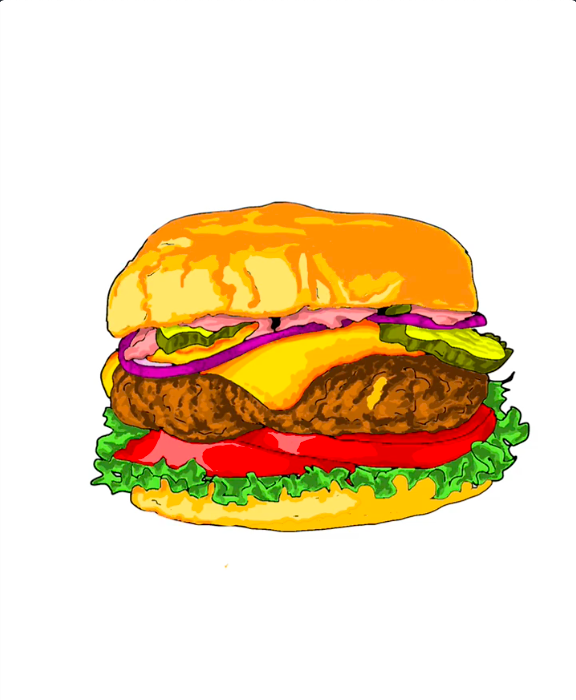
Step 40 how to draw hamburger in IbisPaint - Add orange shapes on the top bun with the brush tool
Add orange shapes on the top bun with the brush tool
Step 41 how to draw hamburger in IbisPaint - Add orange shapes on the bottom bun with the brush tool
Add orange shapes on the bottom bun with the brush tool
Step 42 how to draw hamburger in IbisPaint - Add light brown shapes on the top bun to create bread texture with the brush tool
Add light brown shapes on the top bun to create bread texture with the brush tool
Step 43 how to draw hamburger in IbisPaint - Add light brown shapes on the bottom bun to create bread texture with the brush tool
Add light brown shapes on the bottom bun to create bread texture with the brush tool

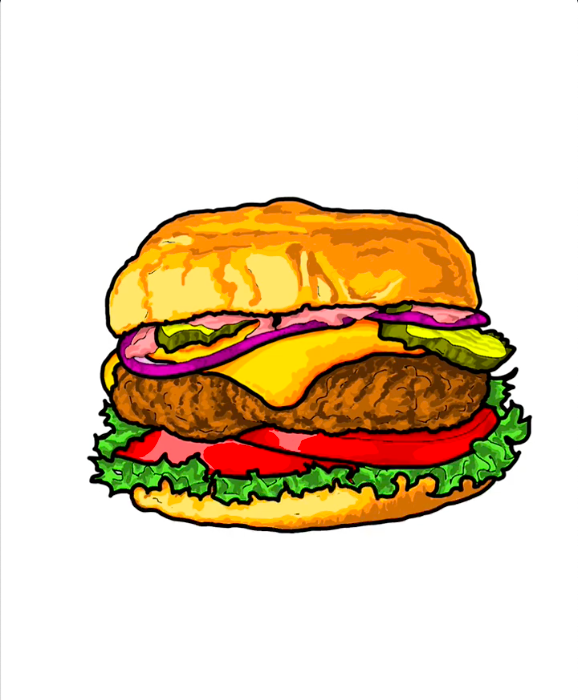
8. Add bold black outlines to all the hamburger food parts

Create a new layer just for this big outline. Use a brush tool with a larger radius and pick black color.
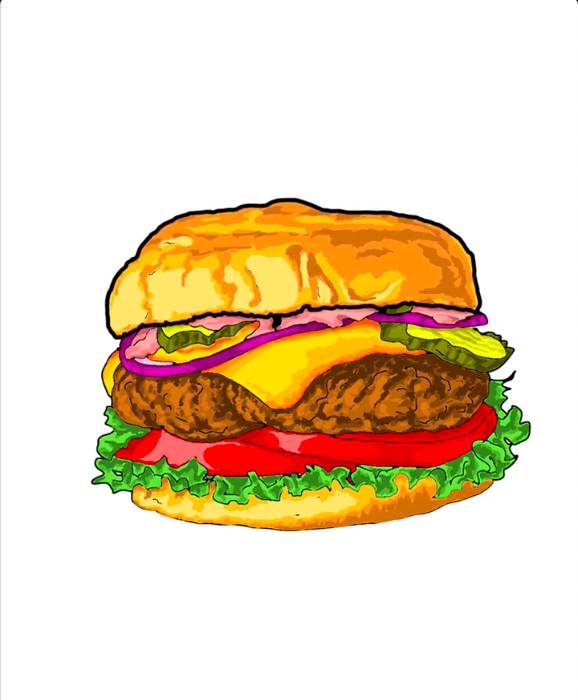
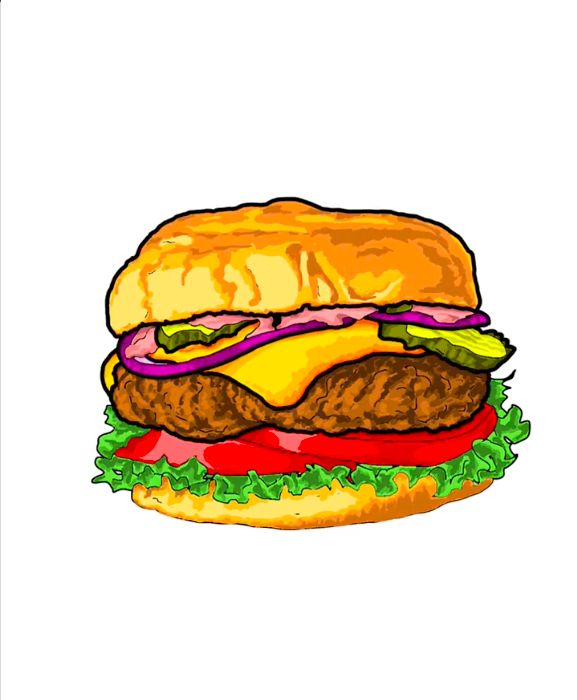
Step 44 how to draw hamburger in IbisPaint - Add a bold outline to the upper bun
Add a bold outline to the upper bun
Step 45 how to draw hamburger in IbisPaint - Continue with the bold outline for all the hamburger stuffings
Continue with the bold outline for all the hamburger stuffings
Step 46 how to draw hamburger in IbisPaint - Finish with bottom elements of the hamburger
Finish with bottom elements of the hamburger

9. Add white spots for light reflections and to make the hamburger shine!

Create a new layer just for the white light spots. Use a brush tool, reduce the opacity, use white color. You will add additional brush strokes on top of the white color already applied on this layer to create the brighter white spots.
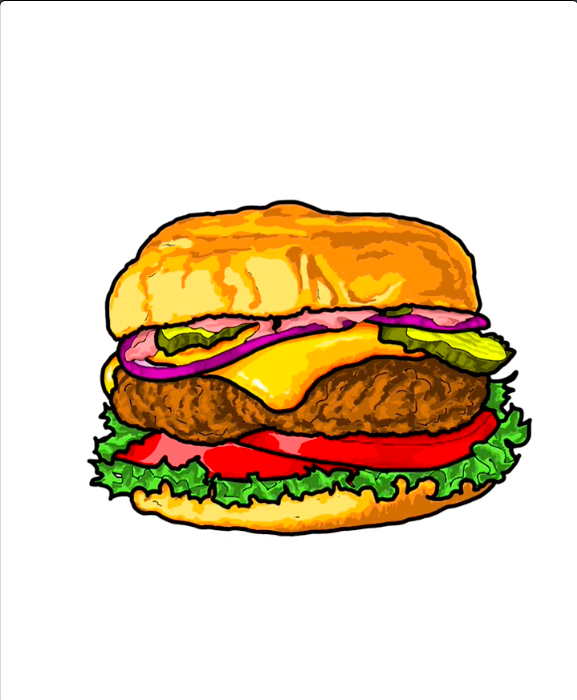
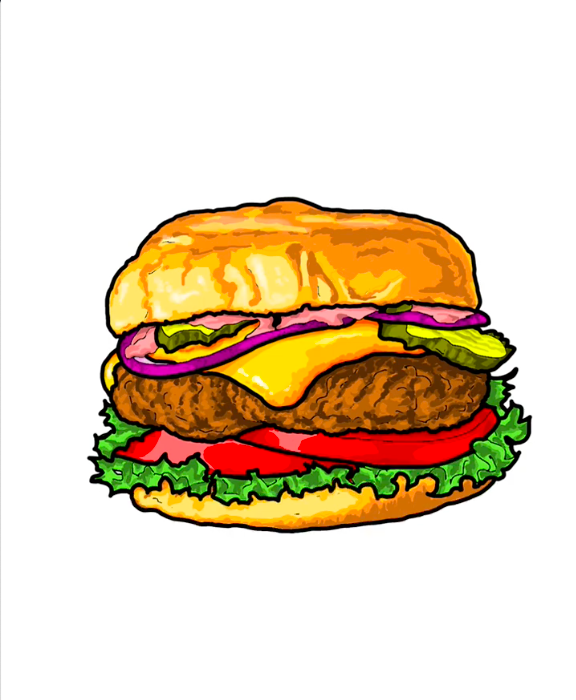
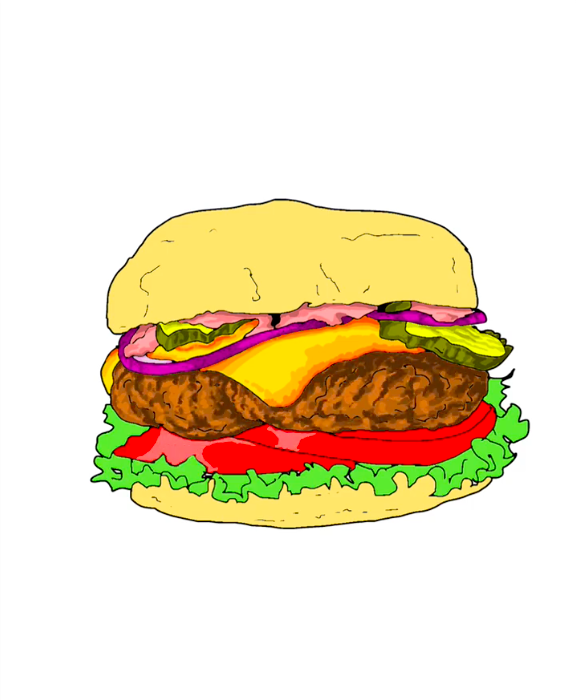
Step 47 how to draw hamburger in IbisPaint - Add white spots on the cheese
Add white spots on the cheese
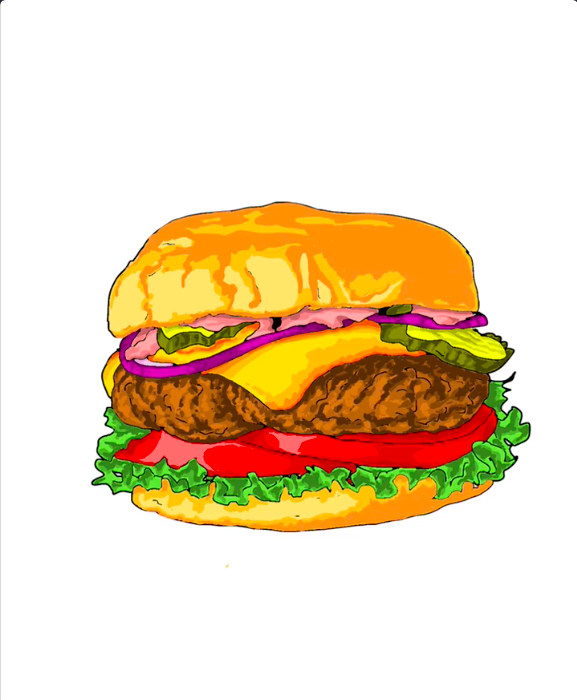
Step 48 how to draw hamburger in IbisPaint - Continue adding white spots on the top bun
Continue adding white spots on the top bun
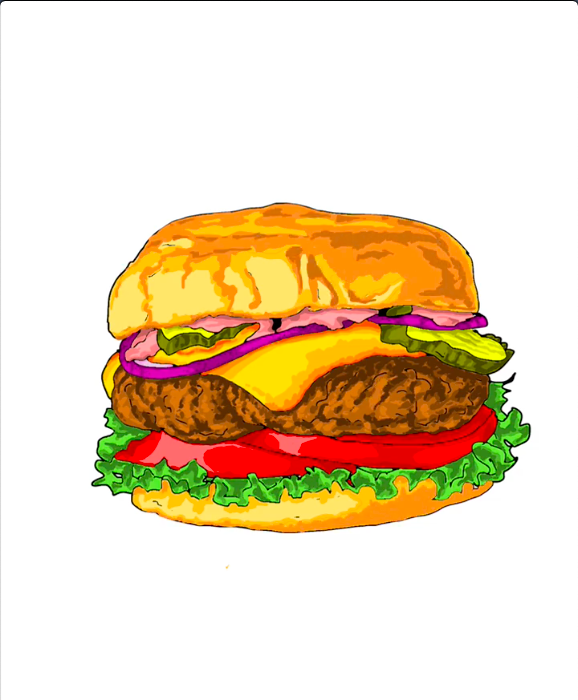
Step 49 how to draw hamburger in IbisPaint - Add white spots on the beef patty
Add white spots on the beef patty
Step 50 how to draw hamburger in IbisPaint - Add white spots on the onion and the pickles
Add white spots on the onion and the pickles
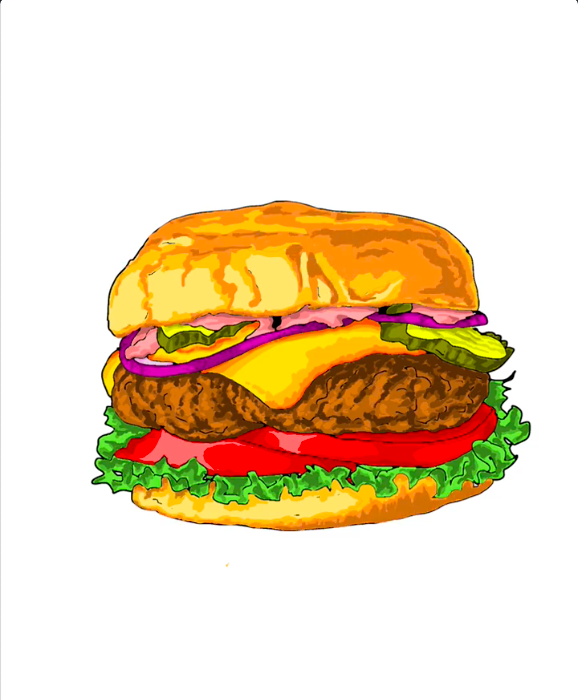
Step 51 how to draw hamburger in IbisPaint - Add white highlights on the tomatoes
Add white highlights on the tomatoes
Step 52 how to draw hamburger in IbisPaint - Add white on the lettuce and bottom bun
Add white on the lettuce and bottom bun

10. Add the final touch: dark shadows on the hamburger as a whole

Create a new layer just for the final black shadows. Use a brush tool, reduce the opacity, use black color. You will add additional brush strokes on top of the black already applied on this layer to create darker and darker shadows.
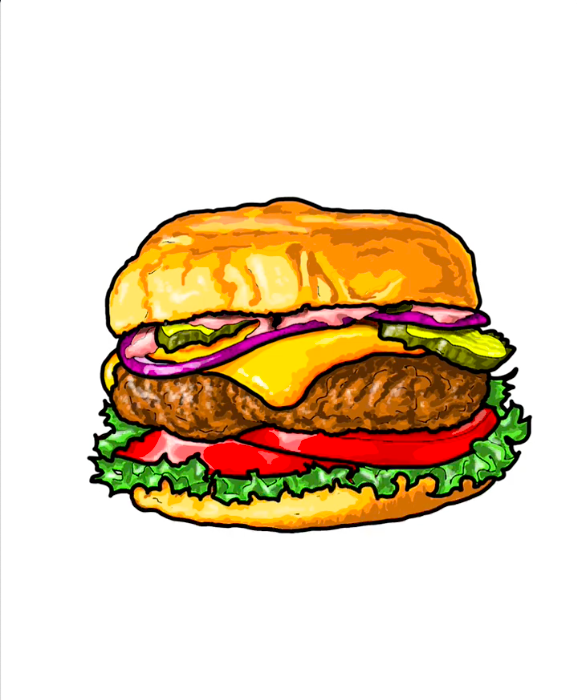
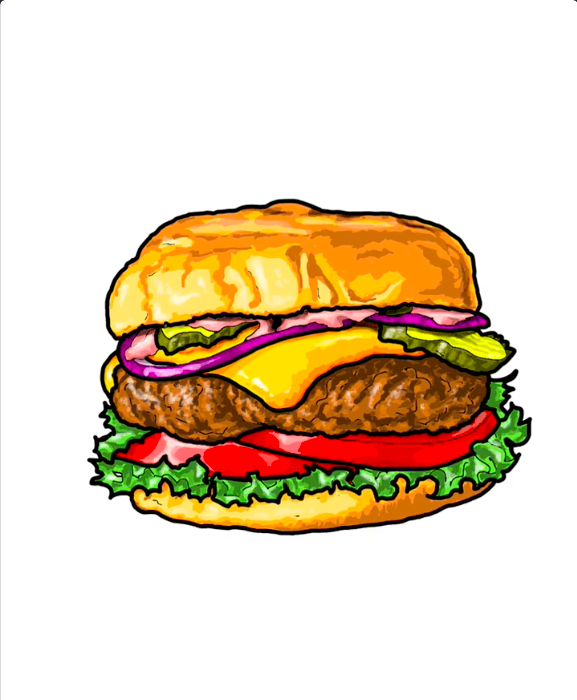
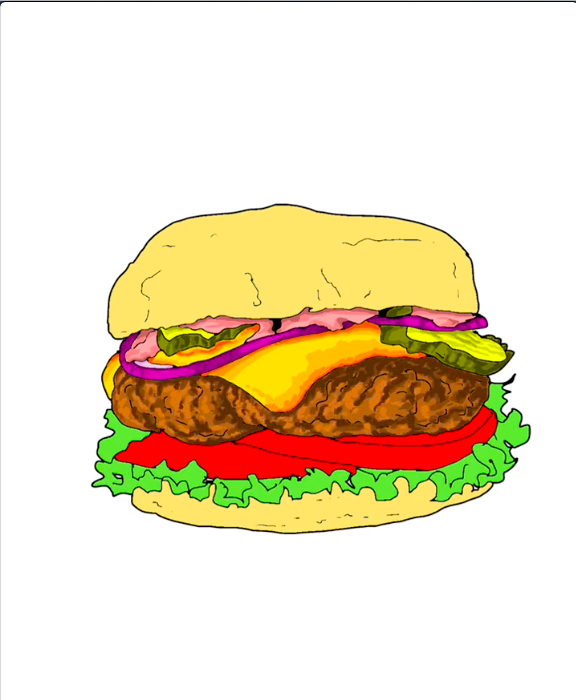
Step 53 how to draw hamburger in IbisPaint - Start by adding some shadows under the top bun, overlapping the sauce, and under the onion slice
Start by adding some shadows under the top bun, overlapping the sauce, and under the onion slice
Step 54 how to draw hamburger in IbisPaint - Add some shadows on the top bun
Add some shadows on the top bun
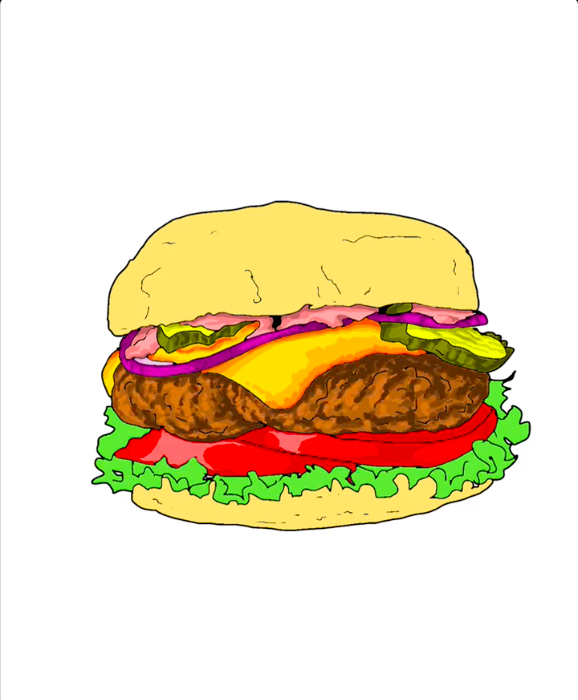
Step 55 how to draw hamburger in IbisPaint - Add shadows on the beef patty, more pronounced on the top under the cheese and pickle
Add shadows on the beef patty, more pronounced on the top under the cheese and pickle
Step 56 how to draw hamburger in IbisPaint - Add shadows on the tomatoes and lettuce
Add shadows on the tomatoes and lettuce
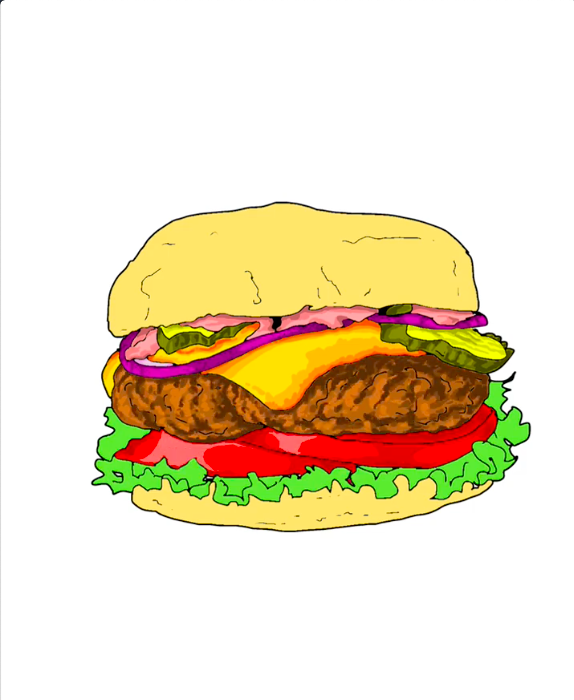
Step 57 how to draw hamburger in IbisPaint - Complete with shadows on the bottom bun
Complete with shadows on the bottom bun

About the Artist

This article and illustrations were created by Madeleine Dubé, an artist and illustrator specializing in step-by-step drawing instruction. She produces detailed tutorials to help beginners learn how to draw realistic animals and other nature-inspired subjects using graphite pencil, ink, and coloring techniques.

Her drawing courses emphasize observing proportions, capturing texture, and building drawings progressively. Her illustrated guides are used by students and art enthusiasts who want to learn to draw in a structured and accessible way. She holds a Bachelor of Fine Arts from Concordia University, majoring in painting and drawing.

Explore more tutorials in the How to Draw Animals section.